Showing posts with label Data Driven. Show all posts

Wednesday, August 3, 2011

WATIR framework

What I am going to discuss here is a standard Page Object Pattern Framework for WATIR.

What each and every framework requires are, Driver Script, Object repository, Script to read data from Data source(EXCEL, CSV or any other), Files to generate and store reports and finally Test Files.

Download Project

The framework designed by me contains following things
Xunit framework test-unit
Data Sources: EXCEL and YAML
Reports: I am using ci_reporter with JUnit ANT target to generate HTML report
Driver Script: BATCH file which will run tests according to parameter passed and will generate the report.
Object Repository: Ruby class per page.

Now let's see everything in details.

Test Script:LoginTestWithYAML.rb inside Test Folder
require 'rubygems'

gem 'test-unit'
require 'test\unit'
require 'watir'
require_relative '../Libs/BaseClassInstanceMethods'
require_relative '../Libs/BaseClassClassMethods'
require_relative '../ObjRepository/LoginPage'
require_relative '../Libs/ReadYAML'

class LoginTestWithYAML < Test::Unit::TestCase
  include ReadYAML
  include LoginPage
  include BaseClassInstanceMethods
  extend BaseClassClassMethods
  def test_gmail
    username_textbox.set(readData("noPassword","username"))
    password_textbox.set(readData("noPassword","password"))
    login_button.click()
    assert(($browser.text.include? "Enter your password."),"Verify Error Messages")
  end
end
ReadYAML.rb inside Libs folder
require 'yaml'

=begin
Author: Gaurang
read the YAML file based on the given scenario name and fieldname
=end

module ReadYAML
  @@config = YAML.load_file("#{File.dirname(__FILE__)}/../data/gmail.yaml")
  def readData(scenarioName, fieldName)
    if (@@config[scenarioName][fieldName].nil?) then
      return ""
    else
      return @@config[scenarioName][fieldName]
    end

  end
end
Object repository: LoginPage.rb inside ObjRepository folder
=begin
Author: Gaurang
Contains all the elements on the login page
=end

module LoginPage
  def username_textbox
    return $browser.text_field(:id,"Email")
  end

  def password_textbox
    return $browser.text_field(:id,"Passwd")
  end

  def login_button
    return $browser.button(:id,"signIn")
  end
end
ANT Target to generate HTML report
http://qtp-help.blogspot.com/2011/07/watir-html-report.html

And finally our driver scripts: run.rb
require 'rubygems'
gem 'test-unit'
require 'test/unit'
gem 'ci_reporter'
require 'ci/reporter/rake/test_unit_loader.rb'
=begin
Author: Guarang
Driver file which would run all the tests inside Test Folder.
=end

class Run

  if (ARGV.length >= 1 ) then
    if (ARGV[0].downcase == "smoke") then
      p "smoke"
      folder= "Tests/Smoke/*.rb"
    elsif  (ARGV[0].downcase == "regression") then
      p "regression"
      folder= "Tests/Regression/*.rb"
    end
  else
    p "default"
    folder= "Tests/*.rb"
  end
 
  Dir[folder].each do |test|
    p test
    require_relative test
  end

end
rub.bat
If you want to run all the tests inside Tests\Smoke folder give enter the following command on command prompt
run smoke
for regression enter the following command
run regression
if you will not provide any argument it will run all the tests under Tests folder.
@echo off 
@echo "initializing..."
rd /s/q Test
@echo "Running Tests..."
ruby run.rb %1
@echo "Generating reports..."
start cmd /C ant
rem wait for 6 seconds
PING 1.1.1.1 -n 1 -w 6000 >NUL
@echo "Opening report..."
start test/reports/junit-noframes.html"

Tuesday, July 26, 2011

WATIR: Parameterization with Excel

Ruby has already a functionality under win32ole package to make your test data-driven.
It has functions to read and write data from and to cell. if you need to read the data from a column and 10th row the code will the something like below.
value = worksheet.Range("a10").Value

However the problem with above code is, when we use that in automation we need to remember what data does "a" column contains, is it username or password or error messages and which scenario does 10th row contain, valid or invalid ?

To get rid of all this question i have write the excel class which will read the data based on given column name(data field name) and row name(scenario name).

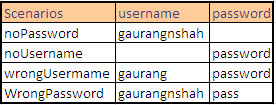
The excel file we will access should look like below, where first row should contain data field names and first column should contain scenario names.

Following is the excel class which will read the data based on given data field name and scenario name
Excel.rb
require 'win32ole'

=begin
Purpose: Class to read Excel file given the column name and scenario name
Author:  Gaurang Shah
=end

class Excel

  @@map = Array["a","b","c","d","e","f","g","h","i","j","k","l","m","o","p","q","r","s","t","u","v","w","x","y","z"]
  #provide the path of the EXCEL file.. i.e. c:/demo.xls
  #Provide the worksheet number if you have multiple worksheets
  #If you will not provide the worksheet number by default it will take 1
  def initialize(path, workSheetNumber=1)
    @path=path
    @workSheetNumber=workSheetNumber
  end

  def openExcel
    # puts "inside excel"
    @excel = WIN32OLE::new("excel.Application")

    @workbook = @excel.Workbooks.Open("#{File.dirname(__FILE__)}/#{@path}")

    @worksheet = @workbook.WorkSheets(@workSheetNumber)
    # just to make sure macros are executed, if your sheet doesn't have macros you can skip this step.
    @worksheet.Select

    column = @worksheet.range("a1:a100").Value
    index=0
    while(column[index].to_s != "") do
      index = index+1
    end

    @scenarios = Array.new(index)
    for i in(0...index)do
      @scenarios[i] = column[i]
    end
  end

  #Returns the EXCEL cell value based on provided ScenarioName and columnName
  def getValue(scenarioName,columnName)

    openExcel()
    #get the first line of excel
    columnNames = @worksheet.Rows(1).value[0]

    #Find out the total number of columns
    name=0
    while(columnNames[name+=1] != columnName) do
    end
    #puts name

    begin
      colData = @worksheet.Range("#{@@map[name]}1:#{@@map[name]}100").Value
    rescue
      return "Data Not Found: Invalid Column"
    end

    totalScenarios  = @scenarios.length
    for index in(0..totalScenarios) do
      if(@scenarios[index].to_s == scenarioName) then
        break;
      end
    end

    if(index >= totalScenarios) then
      return "Data Not Found: Invalid Scenario"
    end
    index+=1;

    value = @worksheet.range("#{@@map[name]}#{index}").value
    @workbook.close
    @excel.Quit

    if(value.nil?) then
      return ""
    end
    return value
  end
end

Following is the sample test which will use the excel class to make test data-driven(parametrized)
DemoTest.rb
require 'test/unit'
require 'rubygems'
require 'watir'
require 'Excel'

class DemoTest < Test::Unit::TestCase
  def setup
    @browser = Watir::Browser.new
    @browser.goto("http://gmail.com")
    @browser.maximize
  end

  def test_gmail
    readExcel = Excel.new("gmail.xls")
    puts readExcel.getValue("noPassword","username")
    @browser.text_field(:id,"Email").set(readExcel.getValue("noPassword","username"))
    @browser.text_field(:id,"Passwd").set(readExcel.getValue("noPassword","password"))
    @browser.button(:id,"signIn").click()
    assert((@browser.text.include? "Enter your password."),"Verify Error Messages")
  end

  def teardown
    @browser.close()
  end
end

Friday, July 15, 2011

WATIR - HTML Report

I was just evaluating WATIR for one of our project and stuck for some time when it came to report.
There are ci_reporter gem which generates xml reports, but we required HTML reports. There are various XSL files available on internet which we can use to generate HTML reports out of this XML, I tried that but the reports were not good. We wanted something like generated through ReportNG or Junit.

So I did the trick, I generated JUnit HTML reports from this WATIR XML report file using junitreport ANT Task.
So let's see how to do it.

First you need to install ci_reporter. use the following command to install it.
gem install ci_reporter

require 'test/unit/testcase'
require 'rubygems'
require 'funfx'
require 'ci/reporter/rake/test_unit_loader.rb'


class Demo < Test::Unit::TestCase
 
  def test_first
      assert(true,"PASS");
  end

  def test_second
      assert(false,"Fail");
  end

end  
When you will run the above code it will generate the XML report under test\report folder. Now to generate the HTML report from this XML file, save the following file as build.xml where your above test file is located.
<project name="Report" default="generateReport" basedir=".">
<property name="report.dir" value="test\reports" />
<target name="generateReport">
 <junitreport todir="${report.dir}">
  <fileset dir="${report.dir}">
    <include name="*.xml" />
  </fileset>
  <report format="noframes" todir="${report.dir}" />
 </junitreport>
 </target>
</project>

Now run the following command from command line.

ANT

But before you run this command ANT need to be installed on your system. Download and install the ANT from following location.
http://ant.apache.org/bindownload.cgi

Following is the screenshot of report.

Tuesday, May 31, 2011

Selenium - Parameterization with CSV

Earlier we saw how to write down data driven test cases using Excel file. Using Excel for data driven has it's own advatages like you can write down you function in excel and get rid of programming logic from your test. However to connect to excel you need JDBC connectivity which has it's own overhead in terms of processing time and you always need to remember to close the connection.

In a way using CSV for selenium automation is much faster than Excel. so let's see how to use CVS file with selenium automation.

Save the following data as data.csv. First row is header

Scenario name,username,password
valid,Gaurang,Shah
invalid,Gaurang,ccc


import java.io.BufferedReader;
import java.io.FileReader;
import java.util.HashMap;
import java.util.Map;
import java.util.StringTokenizer;

/**
 * @author GauranG Shah
 */
public class ReadCSV {
 /**
  * 
  * @param scenarioName - Row Name
  * @param columnName
  * @param fileName - CSV file name where data is stored
  * @return - Sting value
  */
 public String getValue(String scenarioName, String columnName,String fileName){
  
  try {

   // csv file containing data
   String strFile  =  fileName;
   String strLine   =   "";
   StringTokenizer st  =   null;
   int lineNumber   =   0;
  
   // create BufferedReader to read csv file
   BufferedReader br = new BufferedReader(new FileReader(strFile));

   strLine = br.readLine(); //read first line 
   st = new StringTokenizer(strLine, ",");
   int totalRows = st.countTokens();
  
   
   Map<Object,String> mp=new HashMap<Object, String>();
   
   //Fetch the header
   for(int row=0; row<totalRows; row++){
    mp.put(new Integer(row), st.nextToken());
   }
   lineNumber++;

   while ((strLine = br.readLine()) != null){
    st = new StringTokenizer(strLine, ",");
    lineNumber++;
    if(st.nextToken().equalsIgnoreCase(scenarioName)){
     //Identified the row Now return the specific element based on column name specified.
     totalRows= st.countTokens();
     for(int key=1; key<=totalRows; key++){
      String value = st.nextToken();
      if(mp.get(key).equalsIgnoreCase(columnName)){
       return value;
      }
     }
    }
   } 
 
  }catch (Exception e){
   System.out.println("Exception while reading csv file: " + e);
  }
  
  return "Element Not Found";
 }
 
 //This is just to show usage, you can discard this when you use in your project
 public static void main(String[] args) {
  ReadCSV rc = new ReadCSV();
  System.out.println(rc.getValue("valid", "username","data.csv"));
  
 }

}

Monday, May 23, 2011

Selenium - Parameterization with EXCEL

let's see how to make your selenium test data driven using excel. Using excel as a data driven has it's own advantage. The biggest advantage is it's in a Table format, means easy to understand and modify.
Now let's take the simple example of Login test where we have multiple scenarios like Valid Login, Wrong Password, Wrong Username and let's see how we will automate it using selenium and excel.

Note: Make sue the excel sheet where you write down the data in above format has name "login"

import java.sql.Connection;
import java.sql.DriverManager;
import java.sql.ResultSet;
import java.sql.ResultSetMetaData;
import java.sql.SQLException;
import java.sql.Statement;

import org.testng.annotations.DataProvider;
import org.testng.annotations.Test;

/**
 * @author Gaurang
 */
public class Excel {

 public static Connection con ;
 
 public static String dbURL =
     "jdbc:odbc:Driver={Microsoft Excel Driver (*.xls)};DBQ= "+ "demo.xls;"
      + "DriverID=22;READONLY=false";
 public static  String  getValueFromExcel(String SheetName, String ColumnName, String Scenario) throws SQLException, ClassNotFoundException {
  Class.forName("sun.jdbc.odbc.JdbcOdbcDriver");

  Connection con = DriverManager.getConnection(dbURL);
    
   if(con == null)
    System.out.println("Not able to connect to MS EXCEL");
  Statement stmnt = con.createStatement(ResultSet.TYPE_SCROLL_SENSITIVE,ResultSet.CONCUR_UPDATABLE);
  String sFormattedSheetName = "[" + SheetName + "$]";
  SheetName = sFormattedSheetName;
 
  String query = "Select "+ColumnName+" from "+SheetName+" Where TestScenario='"+Scenario+"'" ;
    
  ResultSet rs = stmnt.executeQuery( query );  
  
  rs.next(); //initially cursors is at -1 position
  String value = rs.getString(1);
  rs.close();
  
  return value;
 
 }
 
 @DataProvider(name = "fromExcel")
 public Object[][] createData1() {
  return new Object[][] {
    { "Valid Login" },
    { "Wrong Username"},
    {"Wrong Password"}
  };
 }
 
 @Test(dataProvider="fromExcel")
 public void dataDrivenUsingExcel(String scenarioName) throws SQLException, ClassNotFoundException {
  System.out.println("Scenario="+scenarioName+" UserName="+Excel.getValueFromExcel("login", "UserName", scenarioName));
  System.out.println("Scenario="+scenarioName+" Password="+Excel.getValueFromExcel("login", "Password", scenarioName));
 }
 
}